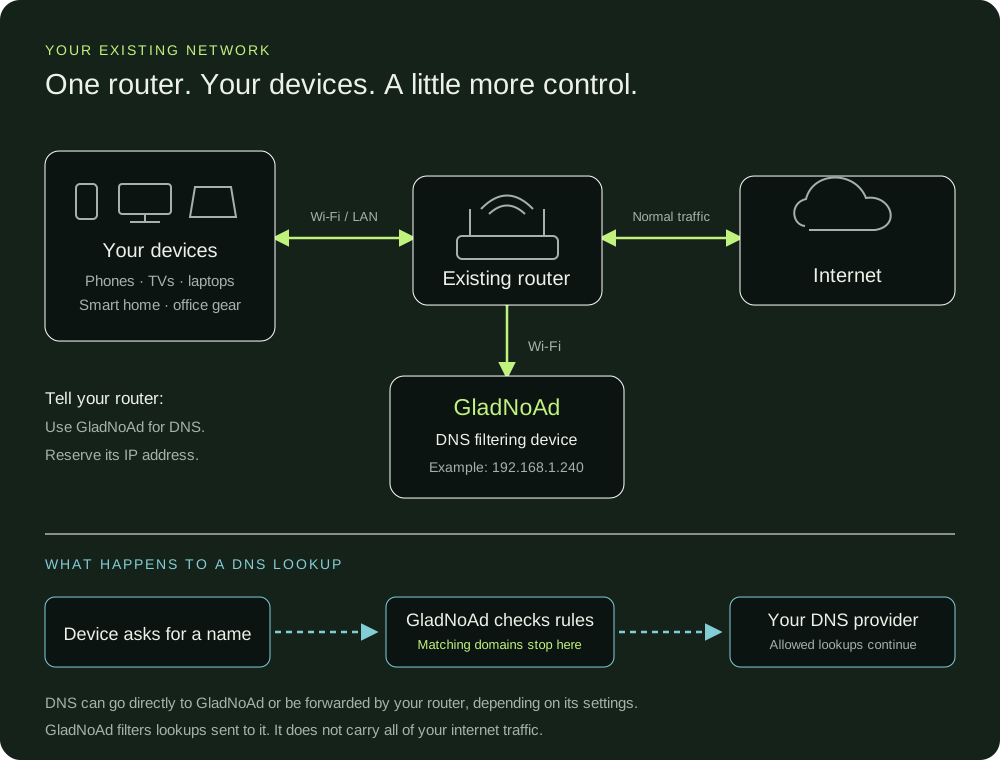
GladNoAd joins your existing Wi-Fi. Configure your router or individual devices to use it for DNS, so it can check domain lookups before they continue.
The same layout fits a home or a small business on one local network. The IP address is an example. Separate guest networks and VLANs need router configuration that lets their DNS requests reach GladNoAd.Download the network graphic (SVG)
Sign in to your router’s admin page. Find DNS settings, often under LAN, DHCP or Internet. The names vary by router.
Set the primary DNS server to your GladNoAd’s IP address. Where available, use the LAN/DHCP DNS setting that is handed to your devices.
Save your settings, then restart the router as directed in the owner’s guide. This briefly disconnects the network.
Reconnect devices as needed so they pick up the new DNS settings.
A public secondary DNS can be used even when GladNoAd is working, allowing some requests to skip filtering. It is a connectivity trade-off, rather than a filtered backup.
PRIMARY DNS · EXAMPLE ONLY192.168.1.240
DHCP RESERVATIONGladNoAd → same IP
Illustrative settings, not a screenshot of a particular router. Use your unit’s address.
02
Reserve GladNoAd’s address.
In your router, find DHCP reservation, Address reservation or Static lease. Select GladNoAd from connected devices and reserve the address shown on its screen. Its MAC address is also available under Advanced System Settings → System Health.
GladNoAd tries to keep its address across reboots. A router reservation prevents the router assigning that address to another device.
After changing Wi-Fi or resetting the unit, always recheck its address. If it changes, restore the reserved address or update your DNS settings; otherwise lookups may still go to the old address.
03
Prefer to test one device first?
Open a phone or computer’s settings for your usual Wi-Fi connection.
Find the DNS setting and choose manual configuration.
Set the DNS server to the IP address displayed on GladNoAd. Other DNS servers may bypass filtering.
Save, browse a few sites, and check the dashboard’s activity.
Exact menus differ by operating system. Keep your previous settings so you can restore them, or return DNS to Automatic when your test is finished.
04
Verify with the dashboard.
Open your GladNoAd’s address in a browser and sign in. Browse from the configured device, then check Queries, Recently Allowed and Recently Blocked under Advanced System Settings.
Connected Devices shows clients whose requests reached GladNoAd. Some routers forward DNS on behalf of clients, so the router’s address may appear instead of each device separately.
Under Network Config, the upstream DNS starts as 1.1.1.1. This is where GladNoAd sends allowed lookups. Do not set it to your router’s address if that router sends DNS back to GladNoAd.
No requests arriving?
Check that the device picked up your DNS changes. Secure DNS / DNS over HTTPS and iCloud Private Relay can route around GladNoAd. Guest-network isolation can also prevent it reaching the unit.
If the dashboard loads but DNS requests time out, your router may intercept DNS traffic. Check its DNS redirect or forced-DNS settings.
A site stopped working?
Reproduce the problem and inspect Recently Blocked. Select Unblock for the domain you need, then reload.
On the two-button color unit, holding B1 for 2 seconds pauses filtering for five minutes to help diagnose the issue. Hold it again to end the pause early.
Home or small business?
Phones, computers, TVs and smart devices can share the same DNS filter when they can reach it on the local network. For guest networks or VLANs, check routing and firewall access with whoever manages the router.
Test work apps and any devices with fixed DNS settings before rolling out to everyone.
After a reset?
Read the new address on the screen. If your router still points DNS at an old address, websites may stop loading.
Update the router’s DNS or restore the prior IP through a reservation or Manual setup. A DHCP reservation helps prevent the mismatch.