Connect GladNoAd to your Wi-Fi, change its admin password, then tell your devices where to send DNS requests.
01
Power on. Scan. Join.
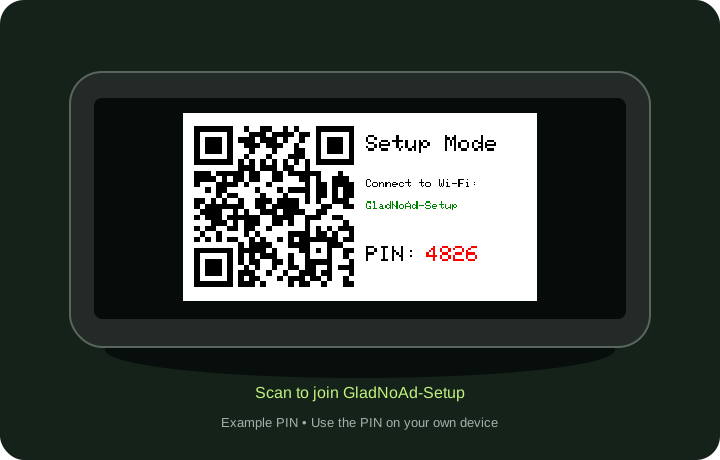
A new unit starts in setup mode. Its screen shows a QR code, GladNoAd-Setup, and a four-digit PIN.
Scan the QR code with your phone’s camera and join the setup Wi-Fi.
Or open Wi-Fi settings and join GladNoAd-Setup manually. It is an open network.
Wait for the setup page to open. If it doesn’t, open a browser at http://192.168.4.1/ while connected to the setup network.
This Wi-Fi is for setup. Your phone may report no internet; stay connected while you configure the unit. The PIN changes each time setup mode starts.
Display reconstructed from the firmware’s drawing code and bitmap font. The QR code contains the actual setup Wi-Fi join information. The enclosure is schematic; 4826 is an example PIN.
02
Connect it to your Wi-Fi.
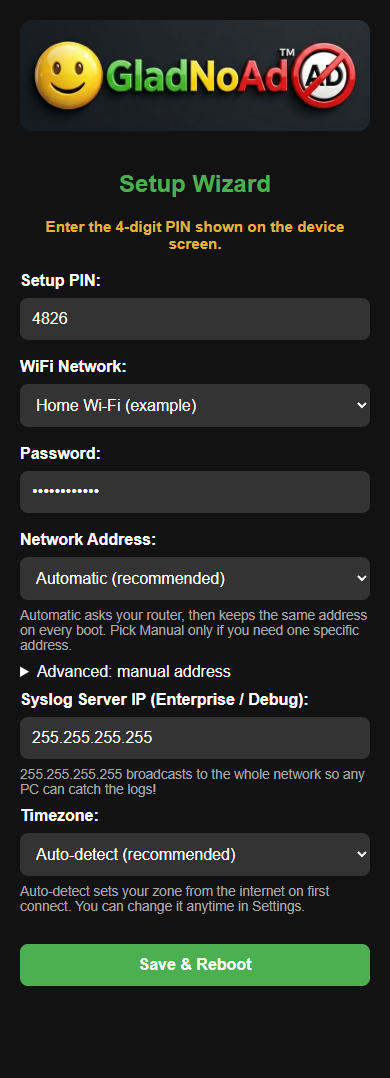
Enter the Setup PIN from your device’s screen.
Choose your network under WiFi Network and enter its Password.
Leave Network Address on Automatic (recommended). Use Manual only if you need a specific address and know your gateway and subnet.
Leave Timezone on Auto-detect (recommended). GladNoAd determines it when it first gets online.
Leave the Syslog Server IP (Enterprise / Debug) field at its default for ordinary setup.
Select Save & Reboot.
The device restarts and joins your network. Setup Wi-Fi disappears. Reconnect your phone to your usual Wi-Fi if it doesn’t switch back automatically.
The setup wizard configures GladNoAd’s connection. Filtering begins only after your router or a device uses GladNoAd for DNS.
Actual setup-page HTML and styles rendered at phone width, with example credentials. Phone browser bars and captive-portal prompts vary by phone.
03
Write down its address.
After the reboot, read the IP address on GladNoAd’s screen. You will use that same address to open the dashboard and configure DNS.
While connected to your usual network, enter your unit’s address in your browser, starting with http://.
The address shown here is an example. Use the address displayed on your own unit. Press a button to wake its screen if it has gone dark.
EXAMPLE DEVICE ADDRESS192.168.1.240Dashboard: http://192.168.1.240/DNS server: 192.168.1.240Your unit’s address may be different.
04
Change the admin password.
Sign in with username admin and the initial password admin.
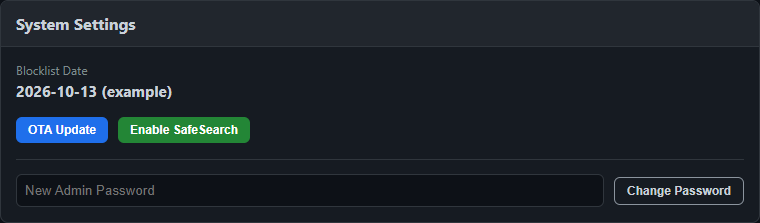
Open Advanced System Settings, then find System Settings.
Enter a new password in New Admin Password and select Change Password.
When the browser asks again, sign in as admin with your new password. Keep it somewhere you can find it.
System Settings excerpt rendered from the firmware’s HTML and styles. The blocklist date is an example.
05
Point your DNS to GladNoAd.
Start with one phone or computer, or configure your router for the whole home or small business. Reserve GladNoAd’s IP address in the router so DNS keeps pointing to the right place.
Browse a few sites on a device configured to use GladNoAd, then open the dashboard.
Connected Devices: look for the device you just used. Names can take time to appear.
Advanced System Settings: check that Queries increases. Recently Allowed and Recently Blocked show recent activity.
Blocklist Categories: review the enabled categories. Changes take effect immediately.
If a wanted site stops working, reproduce the issue, find the domain in Recently Blocked, select Unblock, and reload.
DNS filtering applies to requests that reach GladNoAd. Secure DNS, Private Relay, a different resolver or some guest networks can bypass it. It won’t remove every ad.
Changing Wi-Fi later?
On the two-button color unit, hold B2 for 3 seconds to reopen setup mode. Your lists and device names remain. Filtering stops during setup.
To cancel without saving, unplug and reconnect the unit. Setup mode does not time out.
Saving with Automatic can give the unit a different address. Recheck the display and update your router’s DNS if needed.
Can’t open the dashboard?
Confirm your phone is back on your usual network and use the address on the unit’s screen. A guest Wi-Fi network may not allow access to local devices.
If setup reports an incorrect PIN, read the current PIN from the device and try again.